
Installation and Configuration of Maven.
1. First check Java
Open Command Prompt and run:
java -version
Also:
javac -version
2. Download Maven
Open the official Apache Maven download page:
https://dlcdn.apache.org/maven/maven-3/3.9.16/binaries/apache-maven-3.9.16-bin.zip
Download:
apache-maven-3.9.16-bin.zip
3. Extract Maven
Suppose the ZIP is downloaded to:
C:\Users\admin\Downloads
Extract it.
I recommend putting Maven here:
C:\Program Files\Apache\maven
The important folder is:
C:\Program Files\Apache\maven\bin
Maven itself does not have a traditional Windows installer; the official installation method is to extract the distribution and add its bin directory to PATH.
4. Add Maven to PATH
Press Windows Key and type Edit the system environment variables

Click Enviroment Variables…
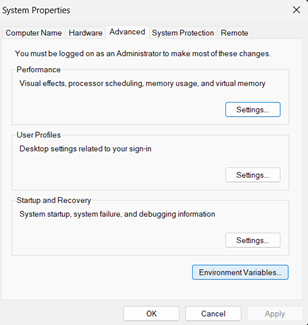
Edit PATH Variable
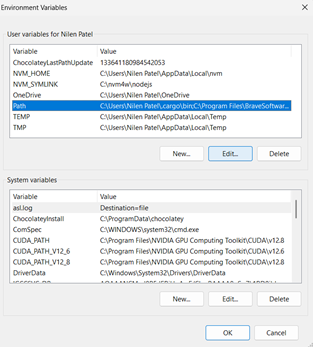
Add Path C:\Program Files\Apache\maven\bin
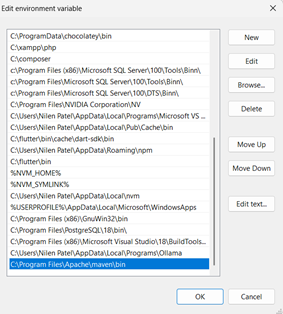
Click: OK Then OK again.
6. Open New Command Prompt
Run:
mvn -version
The official Maven documentation uses mvn -v / mvn –version to verify installation.